
PayU Payments for ERPNext

Collect and refund PayU India payments without leaving ERPNext.

Customers pay Payment Requests, orders, invoices and Webshop orders on the PayU hosted checkout. Payments are verified with PayU, posted automatically, and refunded in full or in part from ERPNext.

  • ERPNext 16
Available

$29one-time

PayU Payments for ERPNext connects PayU India to ERPNext 16. Send a Payment Request from a Sales Order or Sales Invoice, and your customer pays it on the PayU hosted checkout with UPI, cards, net banking, wallets, EMI or Pay Later.

Every result is read again from the PayU verify API and the SHA-512 response hash is checked, so nothing is marked paid on the word of the browser. The Payment Request is marked Paid and the Payment Entry is created against the order or invoice automatically. A customer who pays the same link twice gets only one Payment Entry, and the extra payment is flagged for refund.

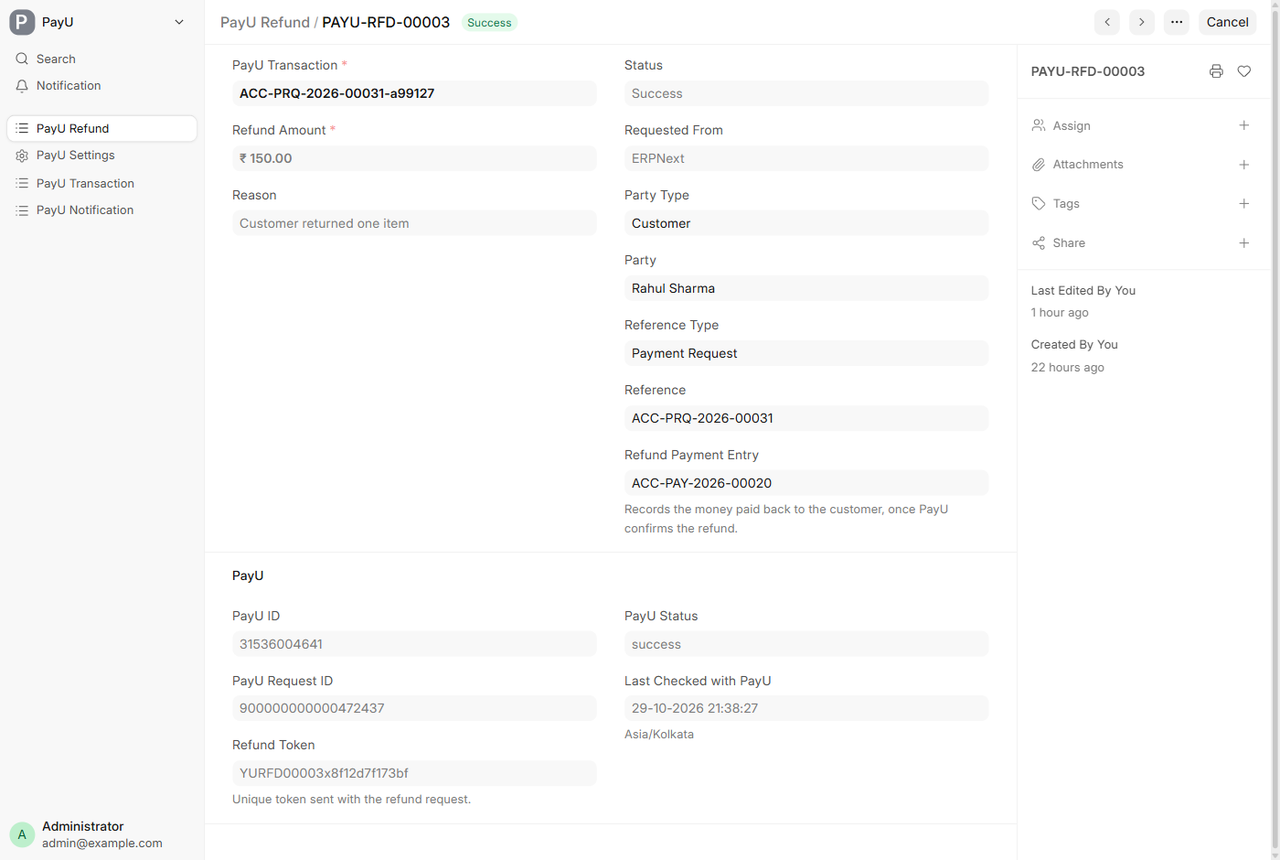
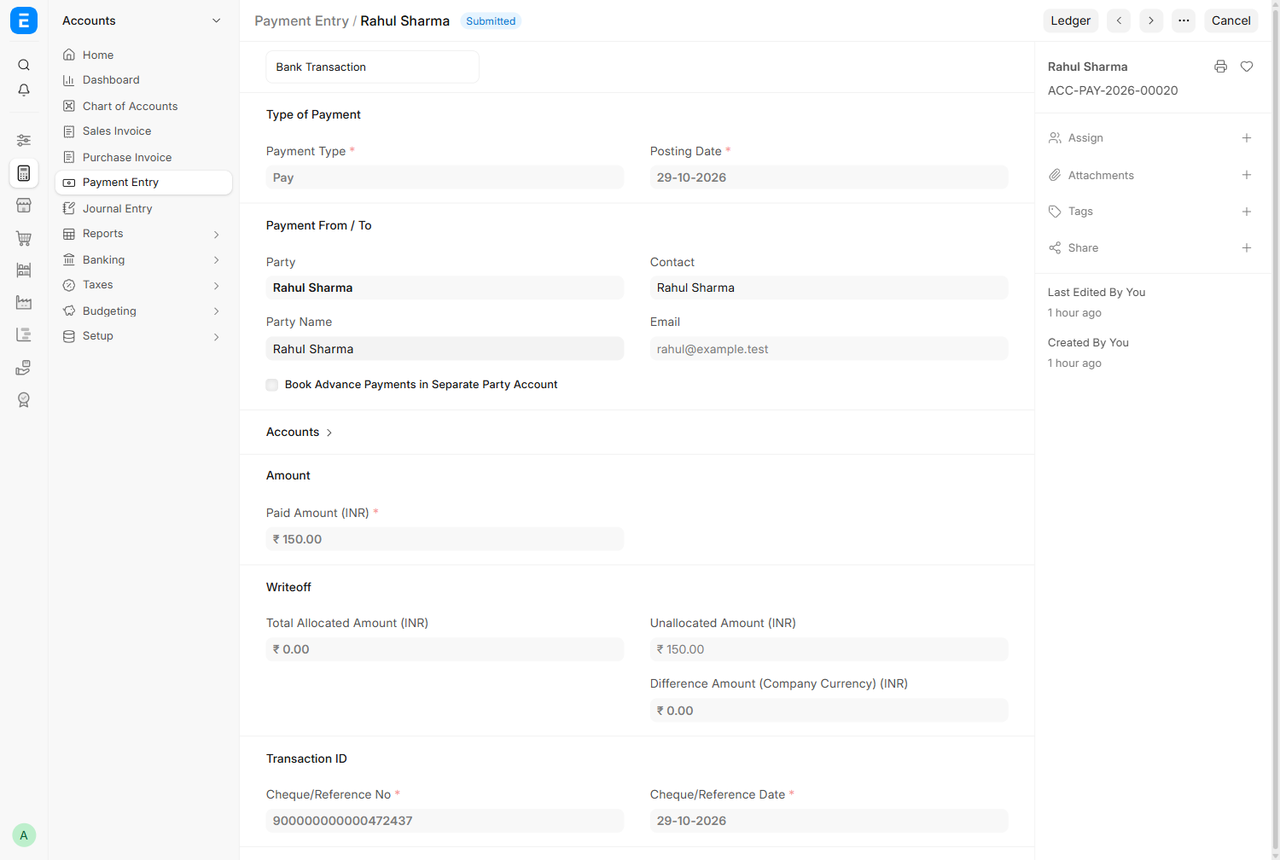
Refunds are made from ERPNext: full or partial, with the refund Payment Entry created once PayU confirms it. Refunds made in the PayU dashboard are imported too. Every PayU message is logged with personal and card data removed.

Screenshots

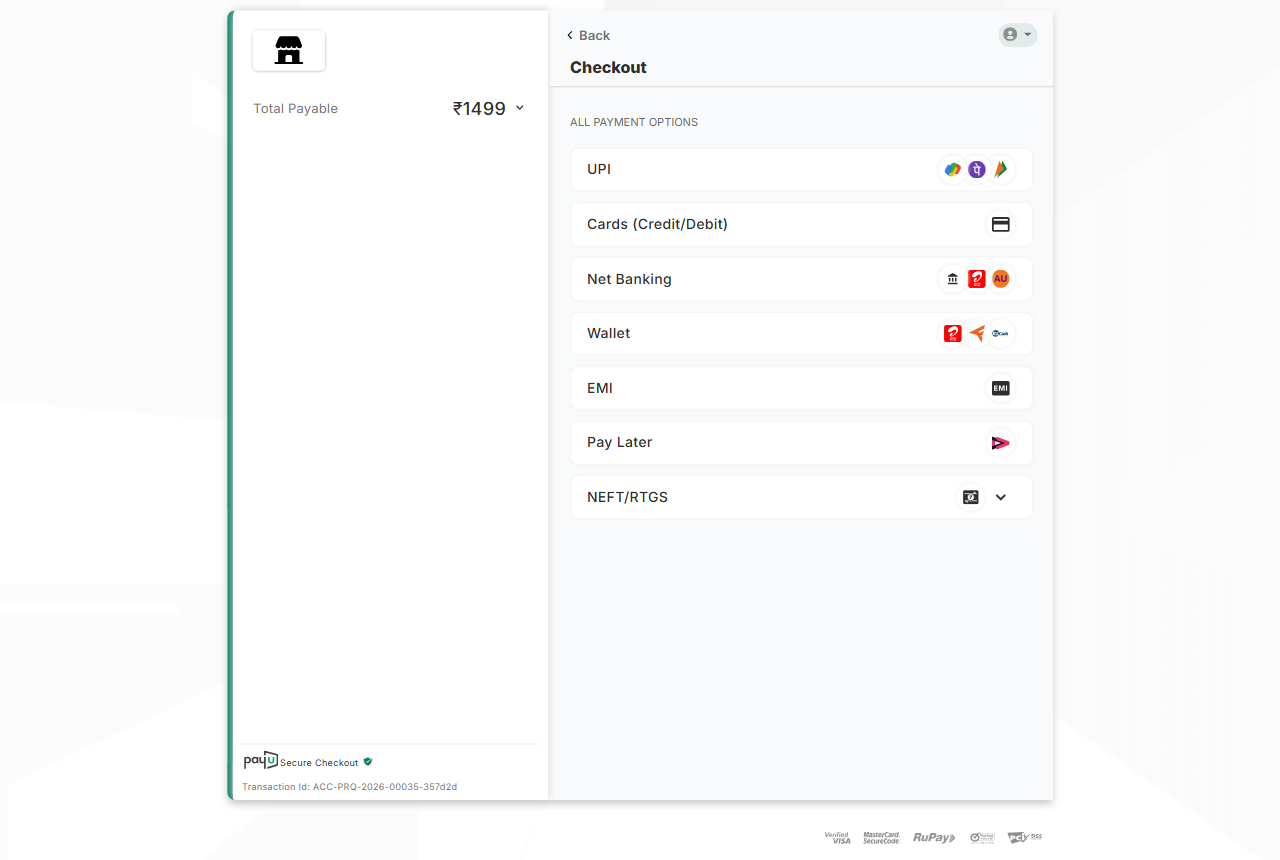
PayU hosted checkout opened from an ERPNext payment link
The PayU hosted checkout opens from the ERPNext payment link: UPI, cards, net banking, wallets, EMI and Pay Later.
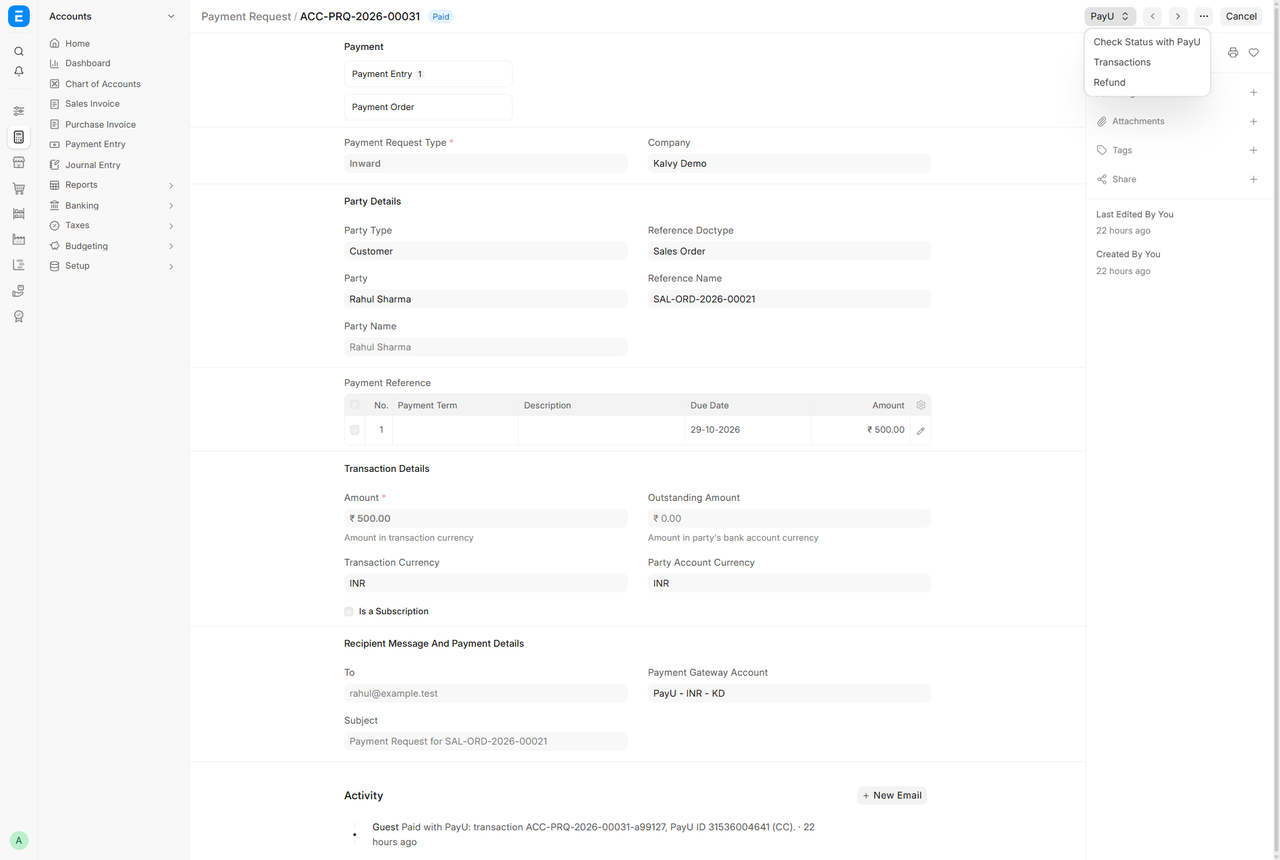
Paid Payment Request with the PayU menu
Paid Payment Request with the PayU menu: Check Status, Transactions and Refund.
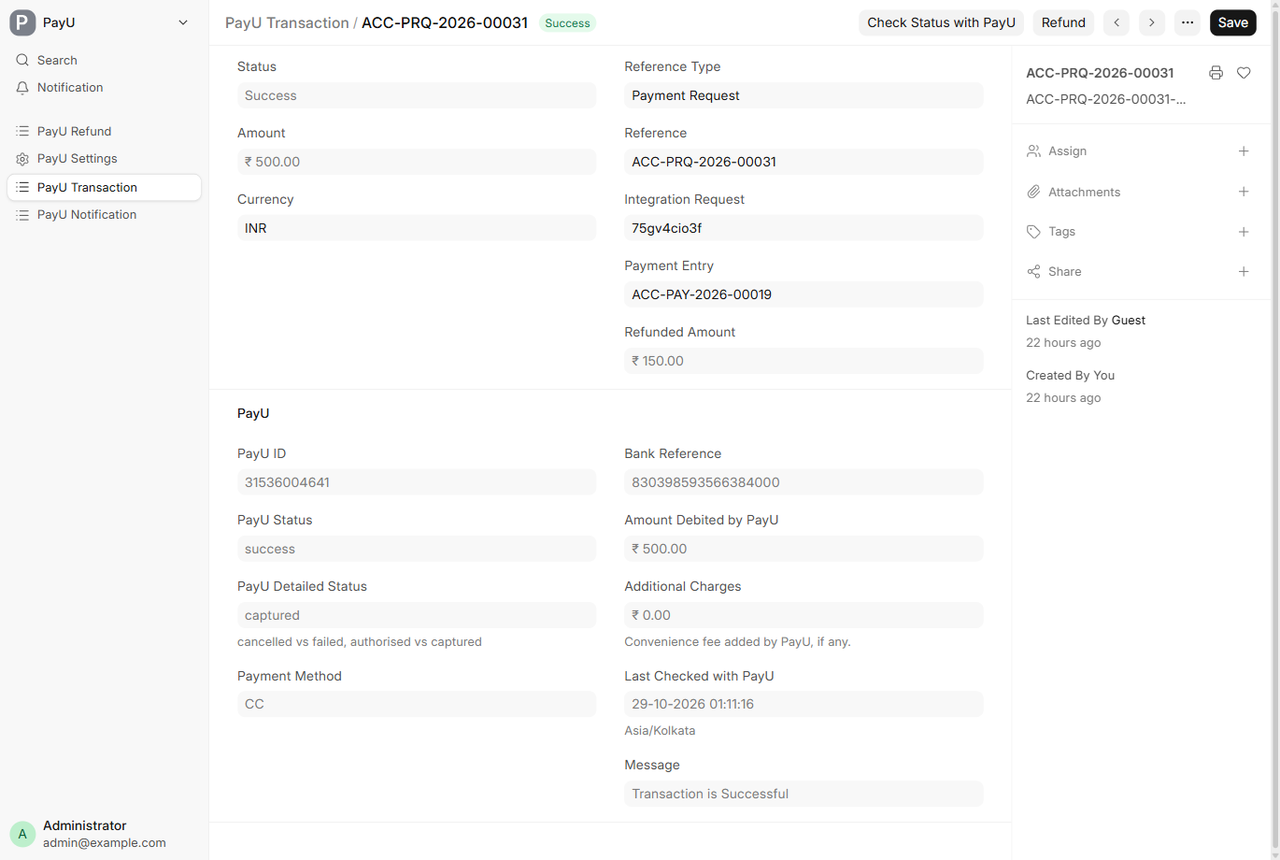
PayU Transaction with PayU ID, bank reference and refunded amount
Each payment attempt is a PayU Transaction with PayU ID, method, bank reference and refunded amount.
Successful partial PayU Refund with its Payment Entry
Partial refund sent from ERPNext, confirmed by PayU, with its refund Payment Entry.
Refund Payment Entry paying the customer back from the PayU account
The refund Payment Entry pays the customer back from the PayU account automatically.
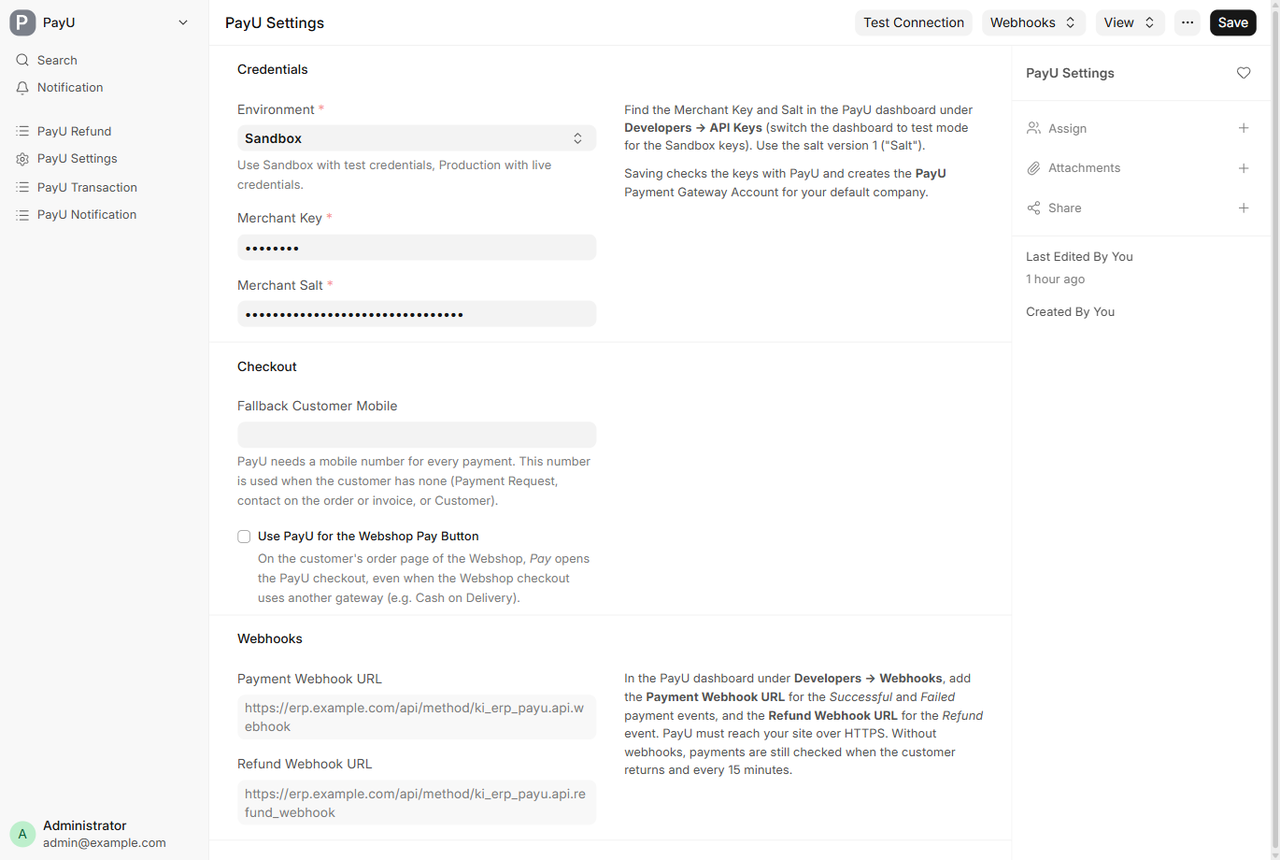
PayU Settings in ERPNext
PayU Settings: Sandbox or Production keys, fallback mobile, Pay button switch and both webhook URLs.
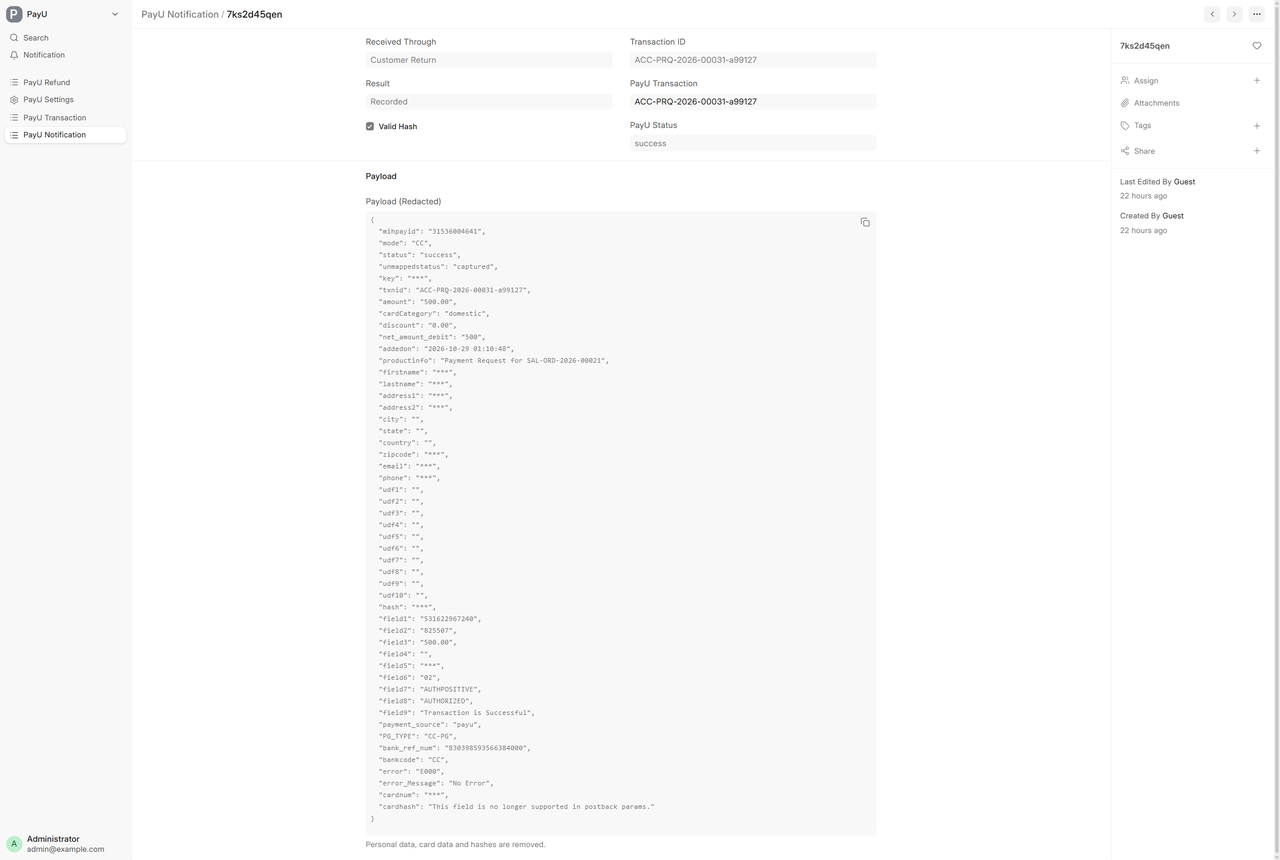
PayU Notification log with redacted payload
Every PayU message is logged with the hash check result; personal data, card data and hashes are removed.

What it does

All PayU payment methods

UPI, credit and debit cards, net banking, wallets, EMI and Pay Later on the PayU India hosted checkout.

Verified results

The status is always read from the PayU verify API, never from the browser or the webhook body. The amount is checked and the SHA-512 response hash is verified.

Automatic Payment Entry

Paid Payment Requests are marked Paid and the Payment Entry is created against the Sales Order or Sales Invoice.

Refunds from ERPNext

Full or partial refunds from the Payment Request or the transaction. A successful refund creates the Payment Entry back to the customer, allocated to a credit note when one is given.

Dashboard refunds imported

Refunds made in the PayU dashboard are imported as PayU Refunds and accounted for the same way.

Paid twice protection

If a customer pays the same link twice, for example a late UPI confirmation, only one Payment Entry is made and the second payment is flagged for refund.

Automatic status checks

Webhooks, a check every 15 minutes of unfinished payments and queued refunds, and a Check Status with PayU button.

Webshop Pay button and log

Customers pay their own orders from the Webshop order page. Every PayU message is kept in a redacted PayU Notification log.

Setup

  1. 1

    Install the app

    After purchase you get access to the private repository: bench get-app <repository> --branch version-16, then bench --site <site> install-app ki_erp_payu.

  2. 2

    Enter your PayU keys

    Open PayU Settings, choose Sandbox or Production, enter the Merchant Key and Salt and save. Test Connection checks them.

  3. 3

    Add the webhooks

    In the PayU dashboard under Developers, Webhooks, add the Payment Webhook URL for successful and failed payments and the Refund Webhook URL for refunds.

  4. 4

    Send a Payment Request

    Create a Payment Request with the PayU - INR gateway account. The customer pays from the link; ERPNext records the payment.

What you need

  • ERPNext 16 (Frappe 16)
  • The Frappe Payments app
  • A PayU India merchant account (test keys for Sandbox, live keys for Production)
  • An HTTPS address for the site, for webhooks
  • The scheduler enabled, for the 15-minute checks (bench enable-scheduler)
  • Webshop app, only for the Webshop Pay button

Good to know

  • ERPNext 16 only; versions 15 and older are not supported.
  • One PayU account per site, INR only (PayU India).
  • PayU needs a mobile number and an email for every payment; set a fallback mobile in PayU Settings.
  • Pre-authorisation is not supported: authorised-only payments are captured or released in the PayU dashboard.
  • Customers do not choose between gateways: each Payment Request uses one gateway.

Questions

Is there a recurring fee?

No. It is a one-time purchase with a perpetual licence. PayU charges its own transaction fees.

Can I refund from ERPNext?

Yes, in full or in part, from the Payment Request or the PayU Transaction. The refund Payment Entry is created once PayU confirms the refund.

What if the customer closes the browser after paying?

The webhook records the payment. Without webhooks, the 15-minute check or the Check Status with PayU button picks it up.

Can I test without real money?

Yes. Use the Sandbox environment with test keys from the PayU dashboard.

Does it work with another gateway app, such as Cashfree?

Yes. Both can be installed. Turn off "Use PayU for the Webshop Pay Button" to hand the Pay button to the other app.

Buy directly, book a demo or ask a question

Buying from us directly suits invoices in your company's name, several databases, or help with installation. We reply with a quote within one business day. Card checkout comes later.

We reply by email within one business day. See our privacy notice.