Multi Payment Gateway for ERPNext

Let Webshop customers choose how to pay, with any payment gateway installed on your site.

Adds a payment choice page to the ERPNext Webshop checkout. Customers pick any gateway installed on your site; the gateway app takes the payment and ERPNext records it automatically.

  • ERPNext 16
Availableon Other

Free

Multi Payment Gateway for ERPNext gives Webshop customers a choice of payment gateway. The standard Webshop sends every order to the single gateway set in Webshop Settings; this app adds a payment choice page between the order and the gateway, listing every gateway you enable, in the order you choose.

It works with the gateway apps you already use. Any gateway that follows the ERPNext Payment Gateway interface is found automatically: Razorpay, Stripe, PayPal, Braintree, Paytm and GoCardless from the Payments app, Cashfree and PayU, and most third-party gateway apps, including ones installed later. Credentials stay in each gateway's own settings, and each gateway keeps verifying its own payments.

Payments are recorded exactly once. A customer can retry or switch gateway at any time, a Payment Request creates only one Payment Entry even when the gateway reports a payment several times, and payments are recorded even when the gateway calls back from a webhook. Free and open source under the MIT licence.
Screenshots

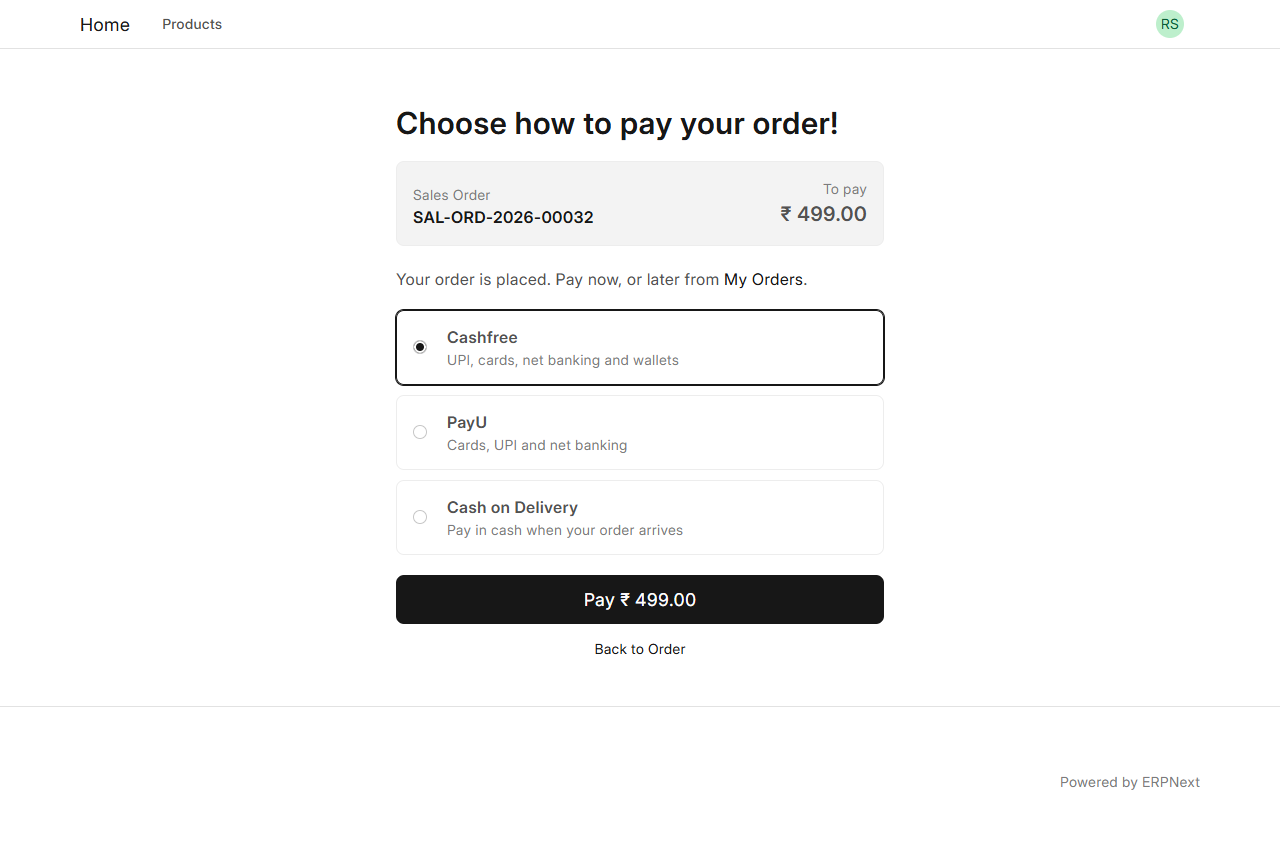
Payment choice page listing Cashfree, PayU and Cash on Delivery
After Place Order, customers choose how to pay: every enabled gateway, in the order you set.
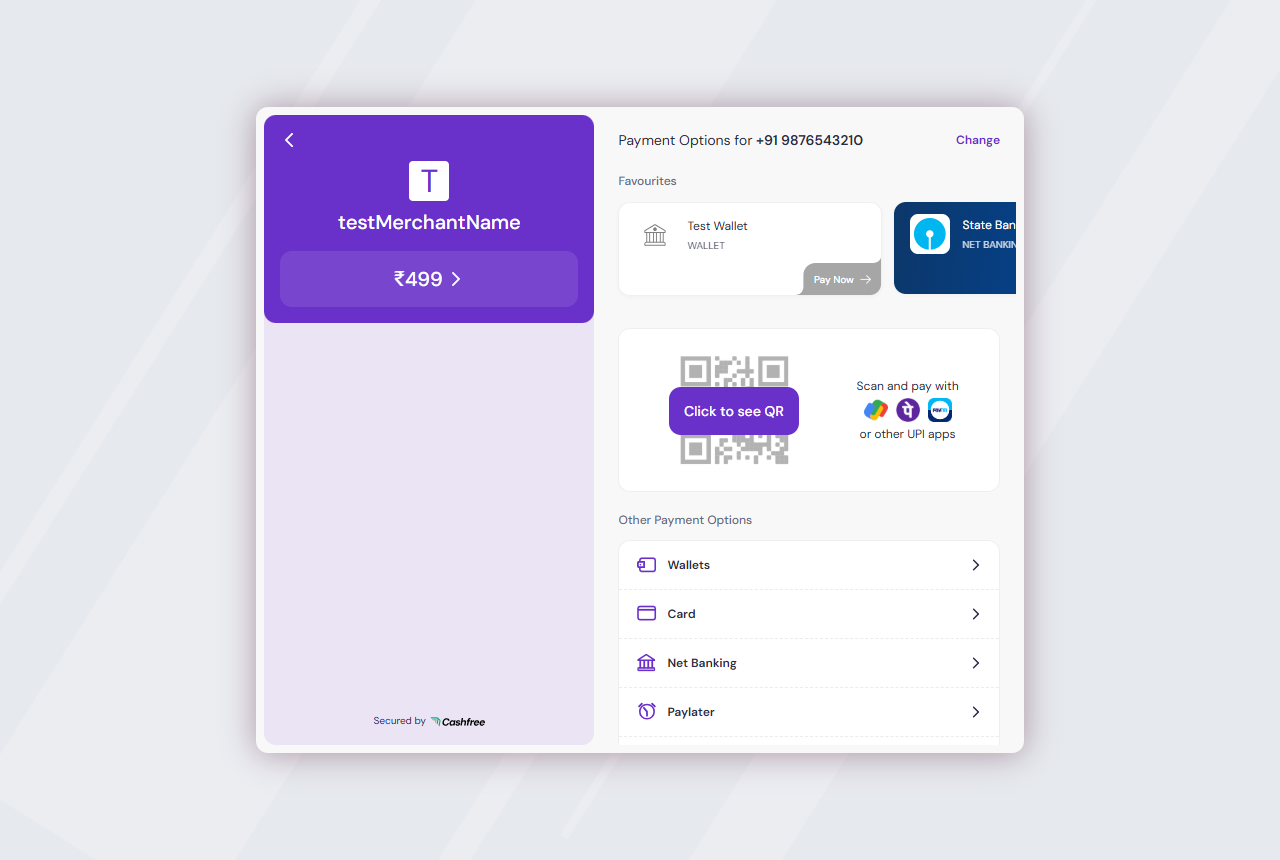
Cashfree checkout opened from the payment choice
The chosen gateway's own checkout opens, here Cashfree (Sandbox shown).
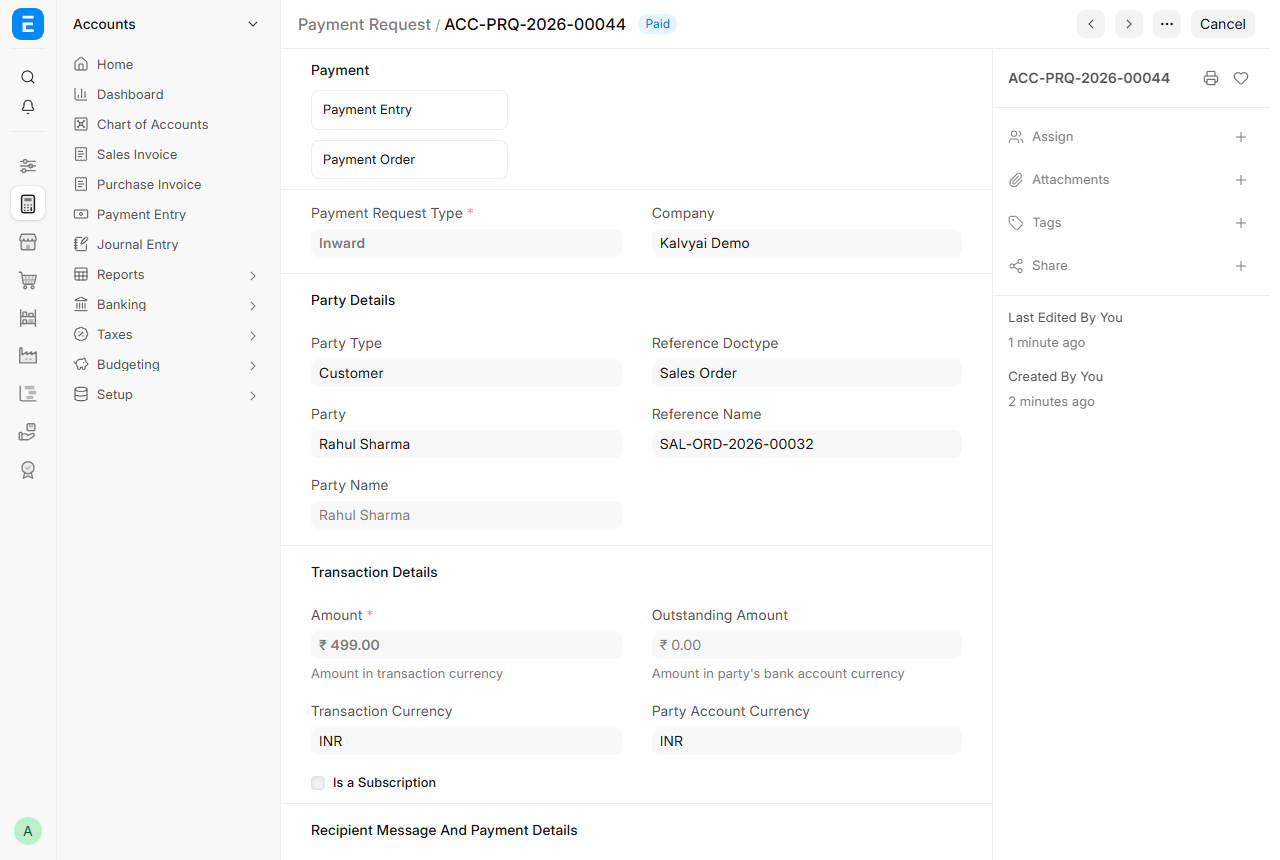
Payment Request marked Paid in ERPNext
Once the gateway confirms the payment, the Payment Request is marked Paid and the Payment Entry is created once.
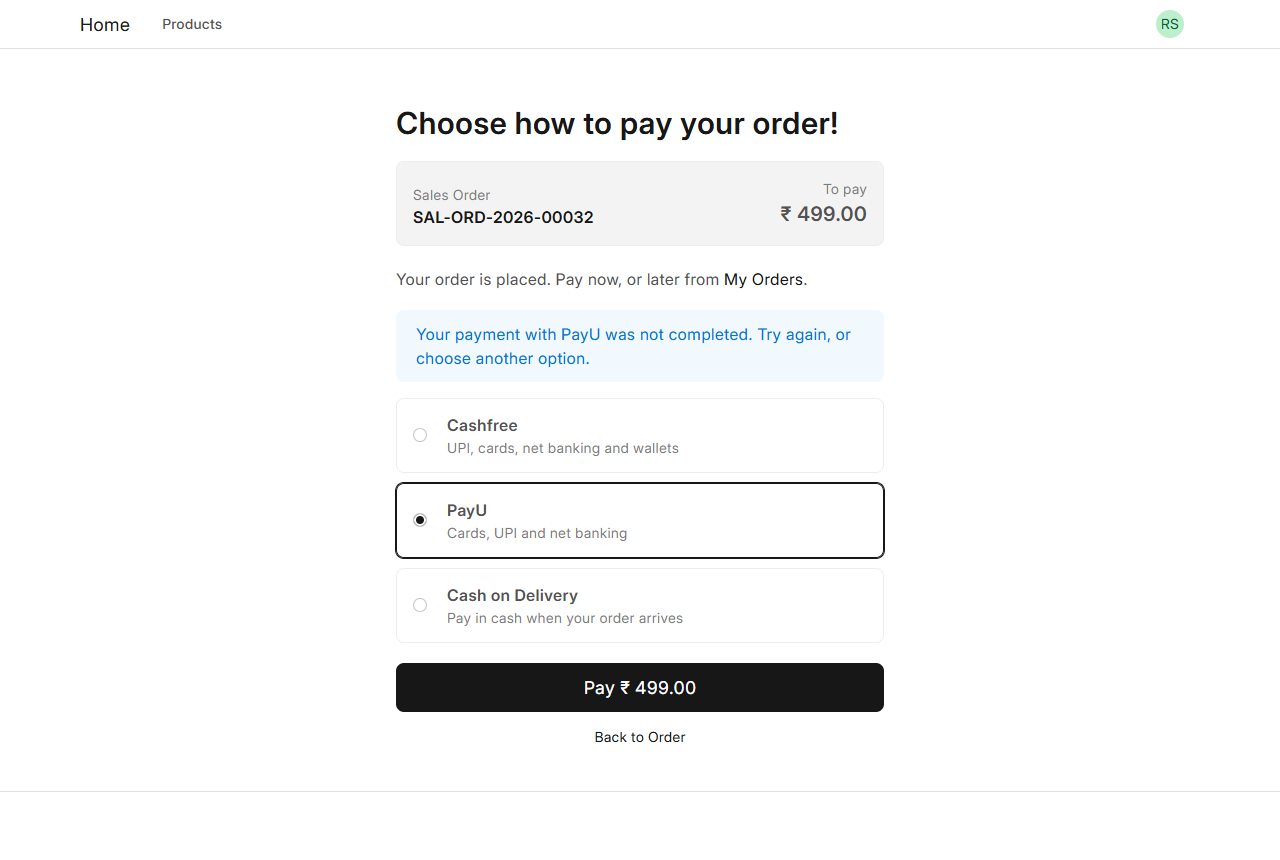
Payment choice offering to try again after an unfinished payment
A customer who leaves a checkout can try again or switch gateway; the unpaid request is cancelled.
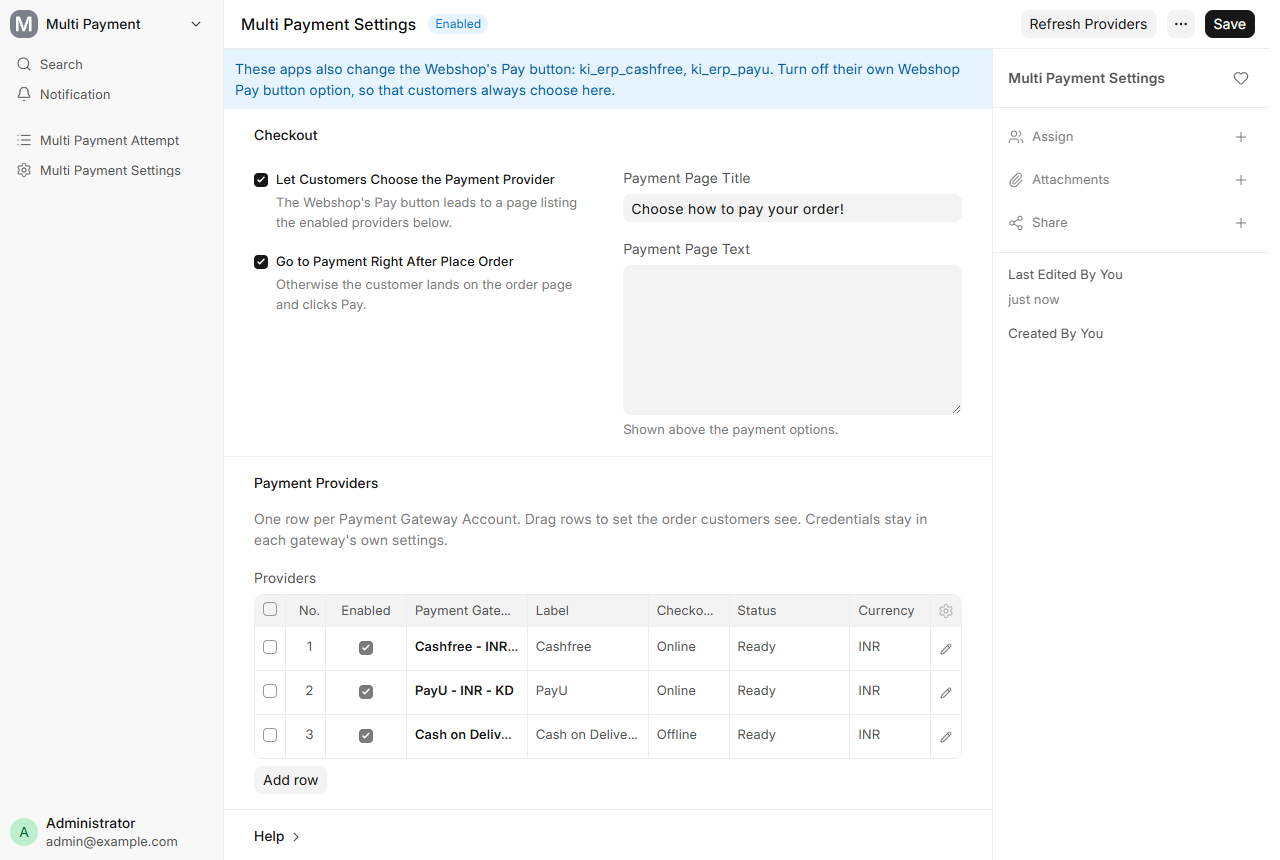
Multi Payment Settings with the status of each gateway
Multi Payment Settings: enable, rename and reorder gateways, with the status of each one checked automatically.
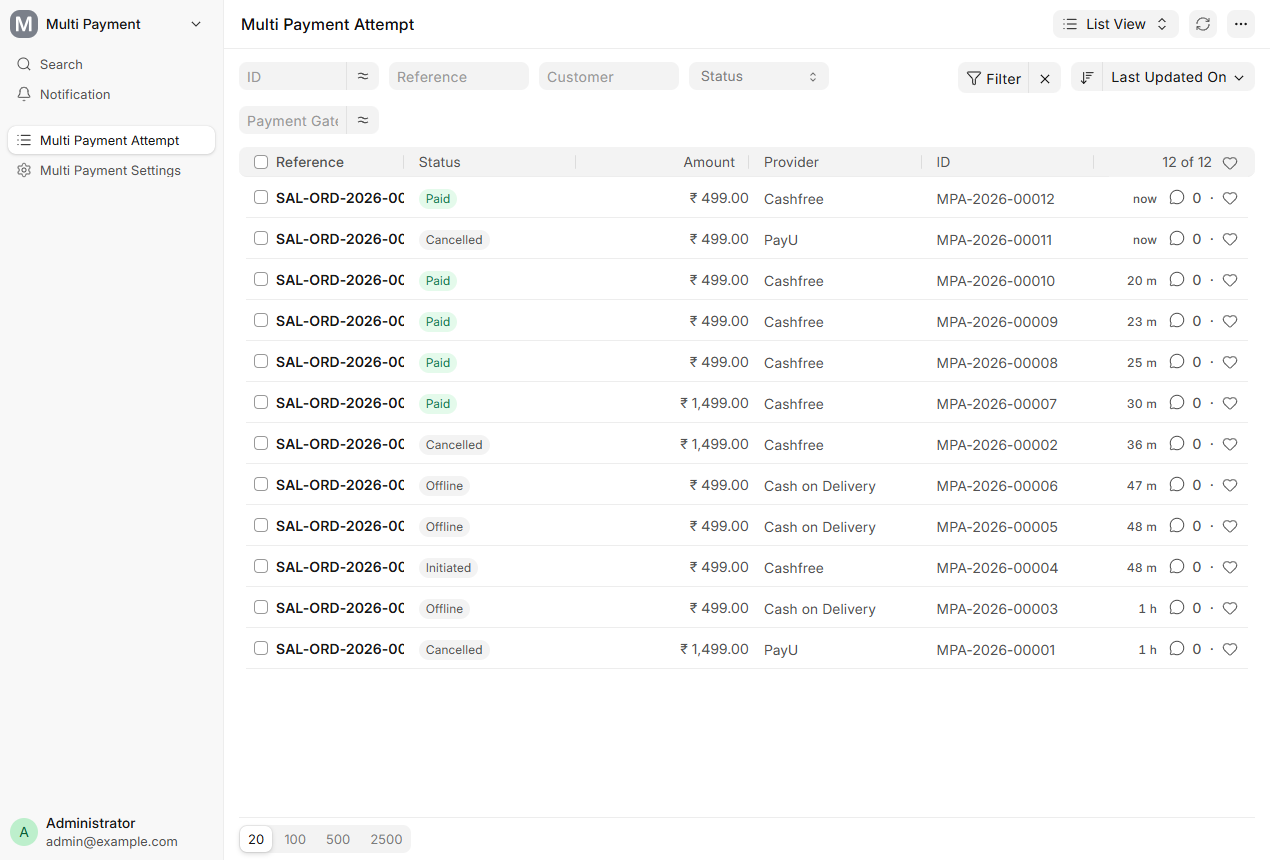
Multi Payment Attempt log with payment statuses
Every choice is logged in Multi Payment Attempt: Paid, Cancelled, Offline, Abandoned or Needs Review.

What it does

Customers choose the gateway

After Place Order, or from the Pay button of an order or invoice, customers see every enabled gateway with its name, description and logo, in the order you set.

Works with installed gateway apps

Every gateway that follows the ERPNext Payment Gateway interface is found automatically, including apps installed later. No change to the gateway apps.

No credentials twice

API keys stay in each gateway's own settings. The gateway app runs its own checkout and verifies its own payments.

Automatic status check

Each gateway is shown as Ready, Not Configured, Not Compatible or Currency Not Supported, with what to fix, and only ready gateways reach customers.

Cash on Delivery and offline options

Offer payments made outside the website, such as Cash on Delivery or bank transfer. The order stays unpaid until you enter the payment.

Retry or switch safely

A customer who leaves a checkout can try again or pick another gateway. The unpaid request is cancelled, so the order is never paid twice by mistake.

One Payment Entry per payment

Even when the return page and several webhooks report the same payment at once, only one Payment Entry is created. A payment on a cancelled request is flagged Needs Review.

Payment log

Every choice is kept in Multi Payment Attempt with its Payment Request, Payment Entry and status: Initiated, Paid, Failed, Cancelled, Abandoned, Offline or Needs Review.

Setup

  1. 1

    Install the app

    bench get-app https://github.com/Kalvyai-erpnext/ki_erp_multi_payment --branch version-16, then bench --site <site> install-app ki_erp_multi_payment and bench build --app ki_erp_multi_payment.

  2. 2

    Set up your gateways

    Set up each gateway app as usual, for example Cashfree Settings or Razorpay Settings. Each one creates a Payment Gateway Account. In Webshop Settings, tick Enable Checkout.

  3. 3

    Choose what customers see

    Open Multi Payment Settings, tick Let Customers Choose the Payment Provider and click Refresh Providers. Enable gateways, set their label, description and logo, drag them into order, and set Cash on Delivery to Offline.

  4. 4

    Hand over the Pay button

    If a gateway app has its own Webshop Pay button option, such as Cashfree or PayU, turn it off. The settings page lists such apps.

What you need

  • ERPNext 16 (Frappe 16)
  • The Frappe Payments and Webshop apps
  • At least one payment gateway app, set up with a Payment Gateway Account
  • An HTTPS address for the site, for the gateways' webhooks

Good to know

  • ERPNext 16 only; versions 15 and older are not supported.
  • Webshop orders and invoices only; Payment Requests sent by email from ERPNext work as before.
  • Placing the order empties the cart, as in the standard Webshop; unpaid orders stay in My Orders, where customers can pay later.
  • Offline options such as Cash on Delivery leave the order unpaid until you enter the payment.
  • Phone-only gateways such as M-Pesa have no checkout page and can't be offered.

Questions

Is it free?

Yes. The app is free and open source under the MIT licence. Each gateway charges its own transaction fees.
Which gateways does it support?

Any gateway that follows the ERPNext Payment Gateway interface, such as Razorpay, Stripe, PayPal, Braintree, Paytm and GoCardless from the Payments app, and most third-party gateway apps. Tested with Cashfree, PayU and Cash on Delivery. Other gateways can be connected with a small adapter, without changing either app.

Do I have to enter my gateway keys again?

No. Keys stay in each gateway's own settings; this app only lets customers choose and sends them to the gateway.

What if a customer pays twice, or the gateway reports the payment twice?

Only one Payment Entry is created per Payment Request. A payment that arrives for a cancelled request is flagged Needs Review in Multi Payment Attempt, so you can refund or record it.

Can customers still pay later?

Yes. Unpaid orders stay in My Orders; the Pay button leads back to the payment choice.

Ask a question

We reply by email within one business day.

We reply by email within one business day. See our privacy notice.